
Adding songs to an event and downloading them
Before you start
On the night, only songs that have been added to the event and downloaded to the computer can be sung. Browsing the library and previewing songs happen online; the cards guests see on stage are downloaded songs only.
In short: add the song to the event and wait for the green "downloaded" mark. After that it works offline too.
Adding songs
- Open the event on the operator screen and go to the Song library.
- Choose a song, a list or an album and press Add to event.
- A song appears in the list only once; adding it a second time changes nothing.
Every computer that opens the event sees the same list and downloads the songs itself. If the terrace and the main stage run on separate computers, both work from the same list.
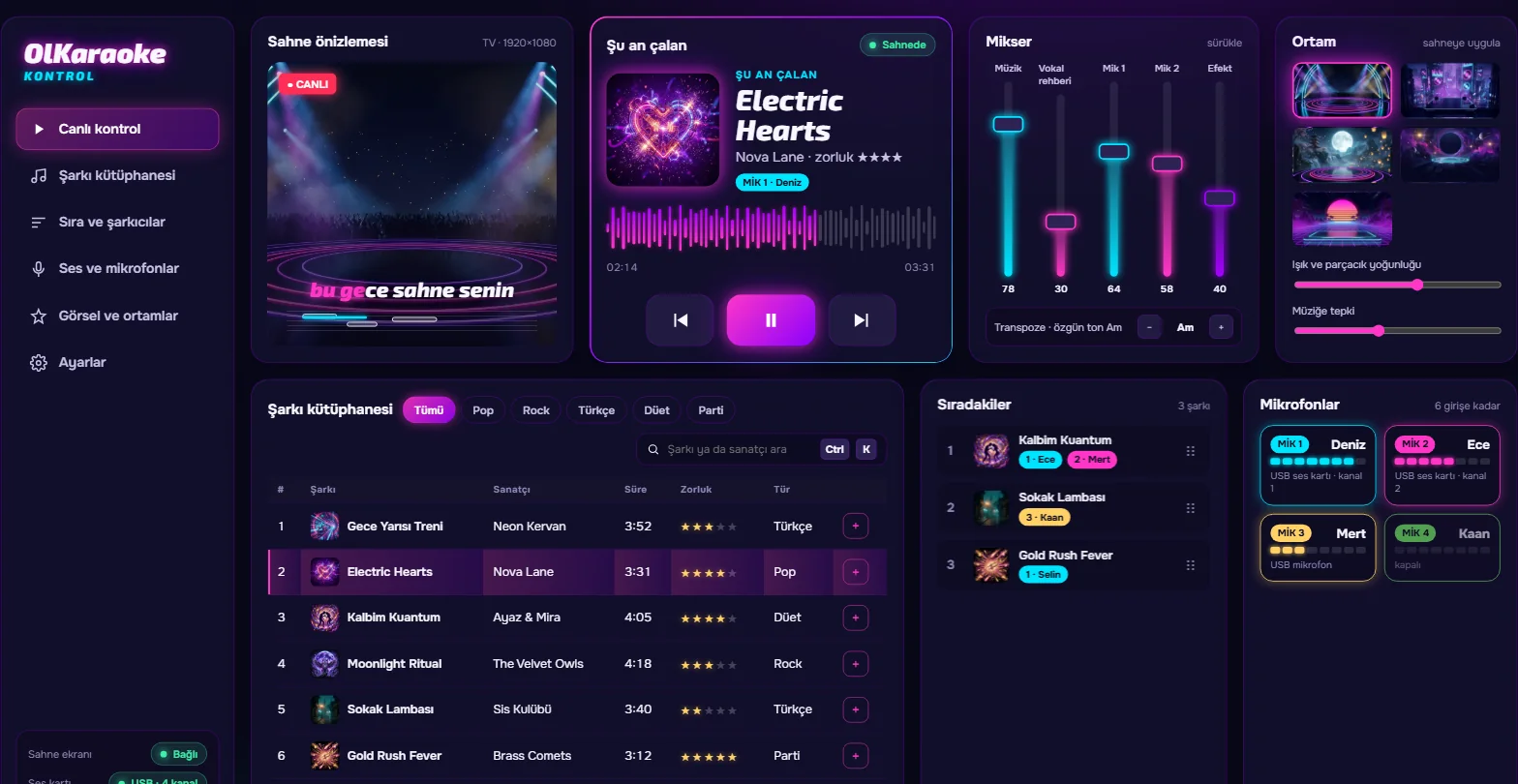
Download status
On the library cards, a green mark means the song is on this computer and a yellow "downloading" label means the download is still running. Missing songs are counted above the event list.
Before the night starts, check that downloads have finished; if the internet drops, songs that have not downloaded will not reach the stage.
Without internet
Downloaded songs can be sung offline for up to seven days. The period counts from the last successful connection; if the licence ends sooner, the licence end date applies. Once the computer connects to the internet, the period starts again.
Was this guide helpful?